
Looking to build websites faster? Use WordPress themes with pre-built starter templates for quick setup, beautiful designs, and effortless customization.
I’ve built several WordPress sites, and starter templates always make the process easier. You don’t need any coding skills to launch a clean and professional website.
Whether it’s a blog, portfolio, business site, or store, these templates give you ready-made layouts. I just pick a design and customize it to fit my style.
In this guide, I’ll show you how I import starter templates in WordPress. I’ll walk you through the setup, the plugin installation, the import steps, and a few issues I’ve run into along the way.
By the end, you’ll see how I take a template and turn it into a design that matches my brand.
What Are WordPress Starter Templates?
From my experience, I’ve found that WordPress starter templates are basically ready-made website designs you can add straight to your site.
They work like a blueprint.
Instead of starting with a blank WordPress setup, you get a structured layout with colors, fonts, pages, and sample content already in place.
I like that most of these templates work smoothly with builders like Elementor, Beaver Builder, and even the Gutenberg block editor.
No matter what type of site I’m building such as business, portfolio, blog, or store I can usually find a template that fits.
Starter templates save me a lot of guesswork. I don’t have to figure out page structure or design layouts from scratch.
I just import a clean, professional design and customize it to match my style. It’s especially useful when I want to move quickly or when I’m not sure where to start with the design.
Why Use a Starter Template?
I’ve noticed that starter templates come with a lot of benefits, whether you’re new to WordPress or already comfortable with it.
They save me a huge amount of time!
Instead of spending weeks building a site from scratch, I can get a complete layout ready in just a few hours.
Here are some other important benefits:
Professional Design
The designs also look professional.
These templates are created by designers who already understand layout, colors, and user experience, so I get a polished starting point every time.
Cost-Effective
They’re also cost-effective.
Hiring a designer can get expensive, but most starter templates are free or very affordable. It’s a great option when I want a solid design without overspending.
Easy to Customize
Customization is easy too. I don’t need any coding skills. I can just use a drag-and-drop builder.
Elementor feels very easy for me, Gutenberg is a bit more moderate, and Beaver Builder falls somewhere in between. I simply choose the builder I’m comfortable with.
Mobile Responsive
Another thing I appreciate is that good templates are mobile responsive. My pages look clean on desktops, tablets, and phones without extra effort from my side.
SEO-Friendly
Most templates are also SEO-friendly. They follow the right coding standards, so I get a strong foundation for search rankings.
And finally, the reliable template providers keep everything updated. Their designs stay compatible with the latest WordPress features and trends, which gives me peace of mind.
Prerequisites
Before you begin importing a starter template, make sure you have the following in place:
- Active WordPress Installation: You need a working WordPress site, either on a live server or a local development environment.
- Admin Access: You must have administrator privileges to install plugins and import templates.
- Compatible Theme: Some starter templates require specific themes to be installed. Check the template requirements before proceeding.
- Sufficient Server Resources: Ensure your hosting plan has adequate memory and processing power. Most hosts recommend at least 256MB of PHP memory.
- Backup Your Site: Always make a full backup before making big changes. You can use a plugin like UpdraftPlus or your hosting provider’s backup tool.
- Fresh Installation (Recommended): For the best results, import templates on a new WordPress site. This helps you avoid problems with old content.
Best WordPress Themes with Starter Templates
Here are the best WordPress themes that offer Starter Templates in their free and premium plans.
1. Responsive Theme + Responsive Plus – Starter Templates Plugin
The Responsive theme by Cyberchimps has been one of the most reliable WordPress themes I’ve used. It feels modern, lightweight, and SEO-friendly.
The theme loads almost instantly on every site I’ve used it on. This gives visitors a smooth experience from the very first click.
And just like Astra, the Responsive theme also comes with its own free templates plugin. It’s called Responsive Plus – Starter Templates.
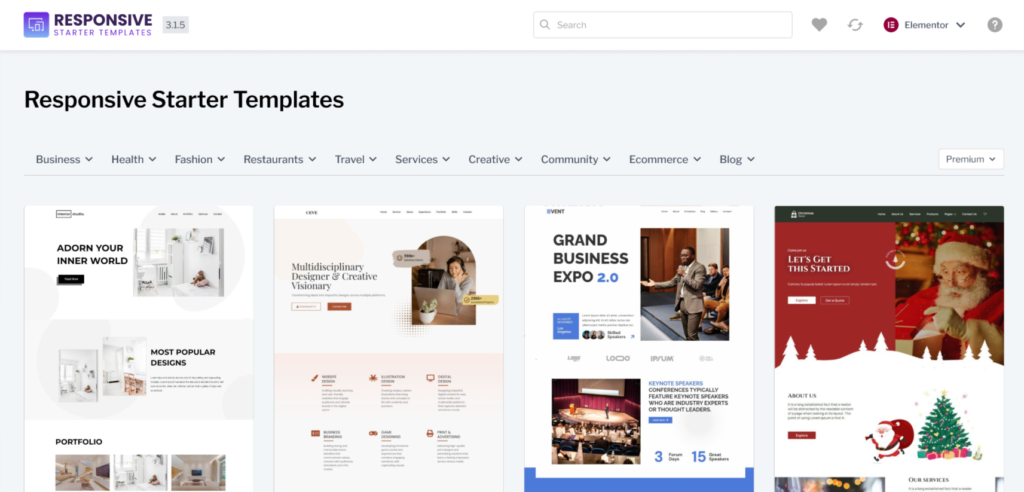
This plugin gives me ready-to-import templates for both Elementor and Gutenberg (WordPress Block Editor).
I can pick a design, import it, and launch a website within minutes. It saves a huge amount of time during setup.
| Number of Templates | Page Builder Supported | Price |
|---|---|---|
| 250+ | Elementor, WordPress Block Editor | Free + Paid Templates starting at $23 annually |
2. Astra Theme + Starter Templates Plugin
Astra is a lightweight WordPress theme that focuses on speed and flexibility. In most of my setups, it loads quickly and uses less than 50KB of resources. That helps keep the site performance clean and efficient.
To access Astra’s free templates, you just need the Astra Starter Templates plugin.
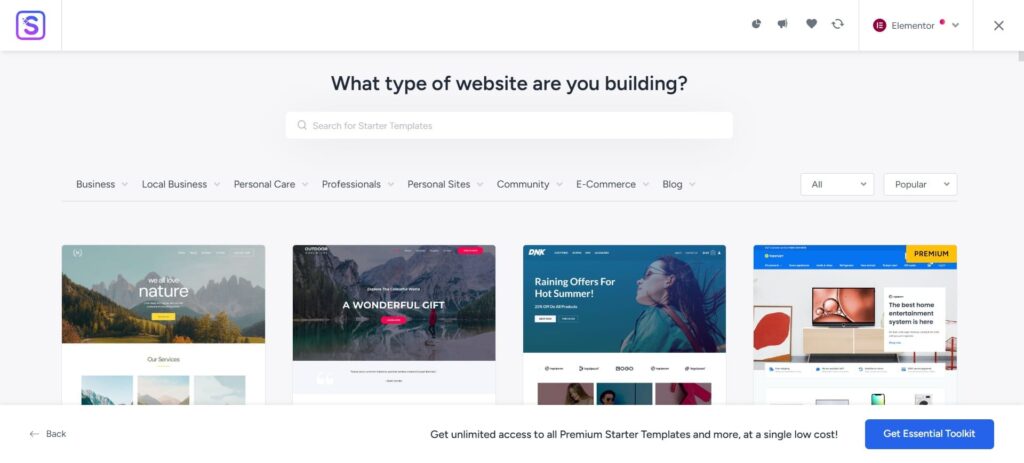
I usually install it whenever I’m working with Astra so I can pick and import a layout quickly.
The theme also gives enough customization options for basic layout changes without needing code. It works well with popular page builders and fits different types of websites.
| Number of Templates | Page Builder Supported | Price |
|---|---|---|
| 300+ | Elementor, WordPress Block Editor | Free + Paid Templates starting at $119 annually |
3. Kadence Theme + Kadence AI Templates Plugin
Kadence is a free WordPress theme developed by the WP Kadence team and is widely adopted.
The theme is known for its speed and flexibility. Even the free version offers enough customization options to adjust the layout the way I need.

The Kadence Starter Templates plugin works with both Elementor and the WordPress Block Editor. That gives me some freedom while setting up designs.
But Kadence mostly leans toward block-based templates. It uses the Kadence Blocks plugin to build most pages. This keeps everything simple and consistent inside the block editor.
| Number of Templates | Page Builder Supported | Price |
|---|---|---|
| 80+ | Elementor, WordPress Block Editor | Free + Paid Templates starting at $69 annually |
4. Blocksy Theme + Blocksy Starter Sites
Blocksy is a free WordPress theme I’ve used for simple and modern website layouts. It works well for creating clean one-page designs, especially for personal websites.
The theme also includes several advanced options, even in the free version. Because of that, I’ve seen many people use Blocksy to build eCommerce shops without immediately upgrading to a paid plan.
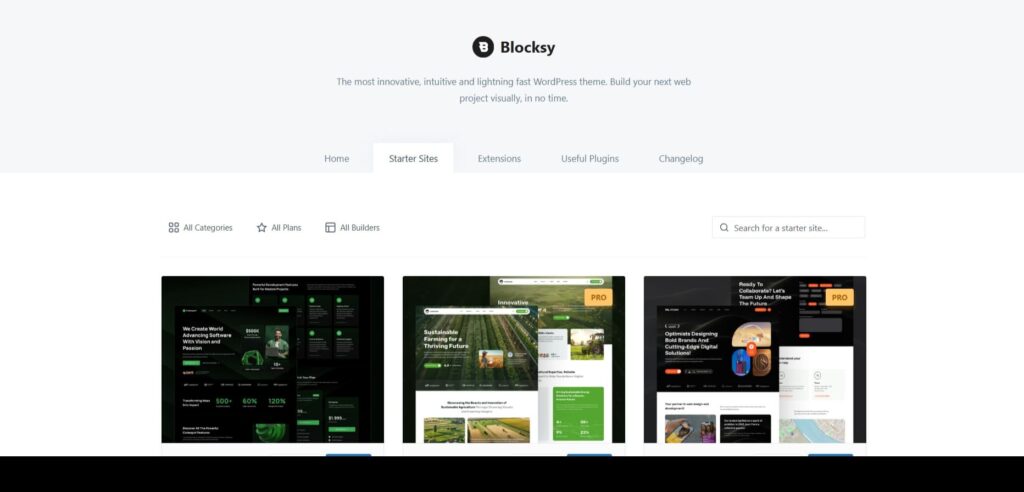
In order to install ready to use starter sites from the Blocksy theme, you’ll need to install the Blocksy companion plugin.
You can select the starter site based on Elementor and Gutenberg page builder, the import process is fast and clean.
| Number of Templates | Page Builder Supported | Price |
|---|---|---|
| 40+ | Elementor, WordPress Block Editor | Free + Paid Templates starting at $69 annually |
5. GeneratePress Theme + GP Starter Sites
GeneratePress is a lightweight WordPress theme built with performance in mind. The theme has a clean code structure.
The core install is very small and takes only around 30KB of space. That helps keep page sizes low.
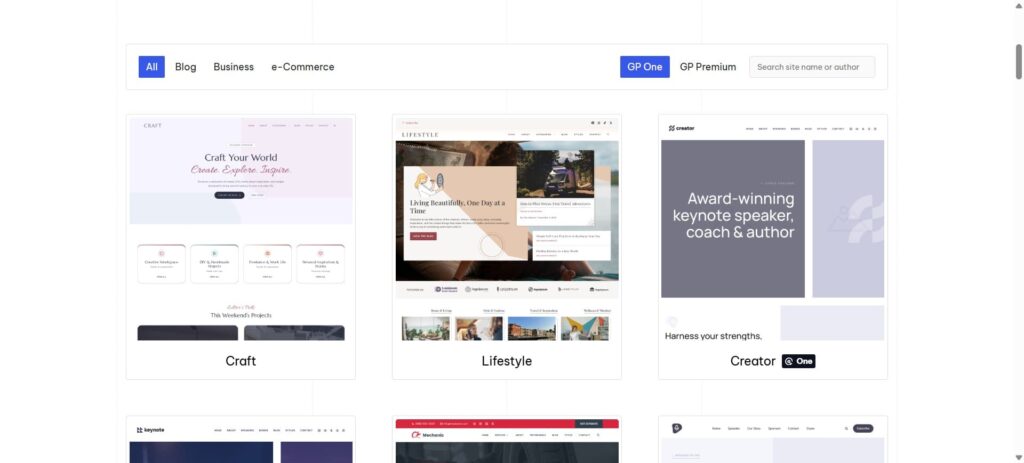
You can choose from a large library of professionally designed starter sites. This makes it easy to begin with a solid layout.
I’ve found that using generatepress starter sites saves hours of development time. It lets me focus more on content and customization instead of building everything from scratch.
| Number of Templates | Page Builder Supported | Price |
|---|---|---|
| 60+ | Elementor, WordPress Block Editor | Free + Paid Templates starting at $59 annually |
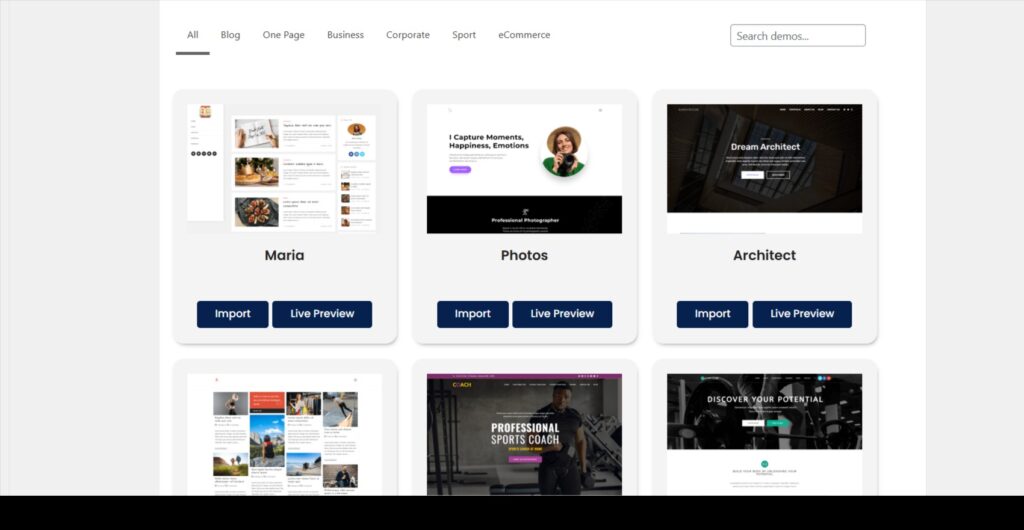
6. OceanWP Theme + OceanWP Templates
OceanWP has been a steady option whenever I need a fast-loading WordPress blog theme. It’s lightweight and doesn’t’feel heavy on performance.
The theme is also quite flexible. I can extend it with add-ons whenever I need extra features.
Troubleshooting Tips
Sometimes things don’t work as planned. Here are some solutions to common problems:
- Import Fails or Times Out: This usually indicates server resource limitations. Contact your hosting provider to increase the PHP memory limit, max execution time, and upload size.
- Missing Images: If images don’t import, you may need to manually download and upload them, or check if your server blocks external image downloads.
- Layout Looks Broken: Clear your browser cache and any caching plugins. Also, regenerate CSS in your page builder settings.
- Plugin Conflicts: Temporarily deactivate other plugins to identify conflicts, then reactivate them one by one.
- Theme Compatibility Issues: Ensure you’re using the recommended theme for your chosen template. Some templates only work with specific themes.
- Slow Import Process: Be patient. Large templates with lots of images might take 10 to 15 minutes to finish importing.
Best Practices for Using Starter Templates
To make the most of your starter template, follow these best practices:
- Start Fresh: Import templates on a new WordPress installation when possible to avoid conflicts with existing content.
- Choose Quality Over Quantity: Select templates from reputable providers with good reviews and regular updates.
- Customize Thoughtfully: Don’t just change colors at random. Keep your design consistent and make sure your changes improve the original look.
- Optimize Images: Compress images before uploading to improve load times. Use tools like TinyPNG or plugins like Smush.
- Keep It Simple: Try not to add too many elements. Clean and focused designs usually work best.
- Test Thoroughly: Before launching, test your site on multiple browsers and devices to ensure consistent appearance and functionality.
- Update Regularly: Keep your theme, plugins, and WordPress core up to date for security and compatibility.
- Monitor Performance: Use tools like Google PageSpeed Insights to ensure your site loads quickly.
Conclusion
Using a starter template has always been one of my favorite ways to launch a clean and professional WordPress site.
It saves time. It reduces effort. And it keeps the cost low.
Whenever I install a template plugin and start customizing it, I’m usually able to build a working website in just a few hours. The process is simple and beginner-friendly.
But I’ve learned something important over the years. A template is only the starting point. The real value comes when I add my own content, branding, and personal style.
I like experimenting with different layouts. I try new color combinations. I adjust the design until everything feels right. This is where the website starts to look uniquely mine.
Whether I’m building my first site or my tenth, starter templates make the process much easier. They remove technical barriers. They let me focus on what actually matters – creating content and connecting with my audience.
So my advice is simple!
Pick a template you like. Import it. Start customizing it step by step.
With just a few clicks, you’ll be much closer to building the website you’ve always imagined.
